A slow computer can affect almost every aspect of your daily activities. Whether you use your PC for gaming, video editing, office work, or general browsing, poor performance can make even simple tasks frustrating. Applications may take longer to open, games may experience frame drops, and the system may become unresponsive when handling demanding workloads.
However, slow performance does not always mean that your computer needs an expensive hardware upgrade. Sometimes, the problem comes from an imbalance between hardware components, outdated drivers, unnecessary background applications, or poor system maintenance.
Understanding what is affecting your computer is the first step toward finding the right solution. Instead of replacing components without investigating the problem, users can evaluate hardware performance, check system stability, and improve Windows settings.
Here are some practical ways to diagnose PC performance issues and keep your computer running smoothly.
1. Understand What Is Slowing Down Your Computer
Before trying to improve PC performance, it is important to identify the actual cause of the slowdown. Different hardware and software problems can produce similar symptoms, so making assumptions may lead to unnecessary changes.
For example, a computer that struggles with modern games may have a graphics card limitation, while a system that takes several minutes to start could have too many startup applications or a slow storage drive.
Some common causes of PC performance problems include:
- An outdated or underpowered processor.
- Limited RAM capacity.
- A graphics card that cannot handle demanding applications.
- Slow or nearly full storage drives.
- Outdated or incompatible device drivers.
- Too many background applications.
- Unnecessary software running during startup.
Windows includes built-in tools that help users monitor system activity. Task Manager is particularly useful because it displays CPU, memory, disk, and GPU usage.
To investigate performance issues, press Ctrl + Shift + Esc and open the Performance tab. Check which resources are experiencing consistently high usage when the computer becomes slow.
This information can help narrow down the possible cause before making any hardware or software changes.
2. Check Whether Your Hardware Components Are Balanced
A computer depends on several components working together. The processor handles calculations and instructions, the graphics card processes visual information, RAM stores data that applications currently need, and storage devices provide access to files and programs.
When one component cannot keep up with the demands placed on it by other components, a performance bottleneck may occur.
For example, pairing a powerful graphics card with an older processor can limit gaming performance in CPU-intensive situations. Similarly, insufficient RAM can affect multitasking and cause applications to become less responsive.
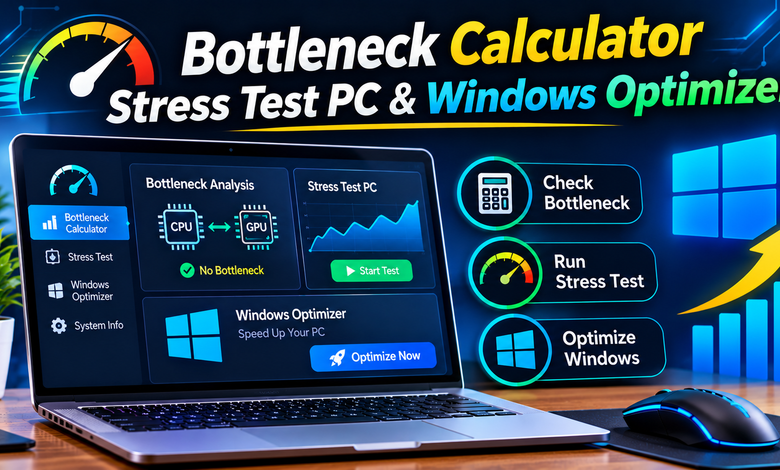
A bottleneck calculator can help users estimate whether their CPU and GPU combination is balanced for a particular workload.
IObit’s Bottleneck Calculator allows users to enter hardware specifications, including processor, graphics card, RAM, storage type, and resolution. It then provides an estimated performance analysis based on the selected configuration and intended use.
This can be helpful when planning a new PC build or deciding which component to upgrade.
However, calculator results should be treated as estimates rather than guaranteed measurements. Actual performance also depends on application requirements, graphics settings, cooling, driver versions, and background processes.
Instead of upgrading the most expensive component, focus on identifying the part that genuinely limits your intended workload.
3. Perform a Stress Test to Evaluate System Stability
Knowing your computer’s specifications does not always tell you how well it performs under demanding conditions. A system may work normally during everyday browsing but struggle when running games, rendering videos, or handling intensive applications.
This is why performance testing can be useful.
A stress test PC solution helps evaluate how a computer handles demanding workloads. Depending on the testing method, it can assess components such as the CPU, GPU, and RAM to provide insights into potential performance limitations.
IObit’s online PC Stress Test allows users to select or detect system configurations and receive a performance report. It provides workload-based analysis and recommendations without requiring a separate software installation.
Stress testing can be particularly useful in several situations:
- After building a new desktop computer.
- After upgrading a processor or graphics card.
- When experiencing unexpected performance drops.
- Before relying on a PC for demanding workloads.
- When investigating possible hardware limitations.
It is important to understand that online estimation tools and dedicated hardware stress-testing applications are not identical. A browser-based assessment can provide useful performance insights, but it does not necessarily place the same sustained physical load on hardware as specialized testing software.
For longer and more intensive tests, users should monitor CPU and GPU temperatures, ensure proper ventilation, and stop testing if the system becomes excessively hot or unstable.
Testing responsibly helps users understand their computer’s capabilities without taking unnecessary risks.
4. Keep Windows Optimized for Better Everyday Performance
Even a computer with capable hardware can feel slow when Windows is overloaded with unnecessary processes and files.
Over time, applications may accumulate temporary data, background services, and startup entries. These activities can consume system resources and affect responsiveness.
A reliable Windows optimizer can help users manage different aspects of routine PC maintenance.
Advanced SystemCare by IObit is one option worth considering. It provides PC cleaning and optimization features designed to help users manage junk files, improve startup performance, and maintain their systems.
Its features can be useful for people who prefer handling multiple maintenance tasks through one interface.
Some practical optimization steps include:
Remove unnecessary temporary files: Temporary data and application caches can accumulate over time. Cleaning suitable files can help recover storage space.
Manage startup applications: Disable programs that do not need to launch automatically when Windows starts. This can reduce unnecessary startup activity.
Close unused background applications: Programs running in the background may consume memory and processing resources. Closing unnecessary applications can help free up resources.
Review system settings: Check power settings and other Windows configurations to ensure they suit your computer’s intended workload.
Advanced SystemCare can support these maintenance activities, although users should review cleaning and optimization recommendations before applying major changes.
Regular maintenance cannot replace insufficient hardware, but it can help ensure that available system resources are used more efficiently.
5. Update Device Drivers to Maintain Hardware Performance
Device drivers play an important role in communication between Windows and hardware components. Graphics cards, network adapters, sound devices, printers, and other peripherals depend on compatible drivers to function correctly.
Outdated or incompatible drivers can sometimes cause unexpected issues, including:
- Graphics glitches and game crashes.
- Audio interruptions.
- Network connectivity problems.
- Hardware recognition errors.
- Reduced performance in certain applications.
Windows Update provides driver updates for supported devices. Users can also download compatible drivers directly from hardware manufacturers.
However, manually checking every device can become time-consuming, especially on computers with multiple hardware components.
Driver Booster by IObit offers another way to manage this process. It is designed to scan for outdated, missing, and incorrect drivers and help users update them.
This can be useful for gamers, content creators, and everyday users who want a convenient way to maintain their device drivers.
Before updating drivers, make sure the selected versions are compatible with your hardware and Windows installation. Creating a restore point before major driver changes is also recommended.
Keeping drivers updated can help resolve compatibility issues and maintain reliable communication between Windows and connected hardware.
6. Remove Unnecessary Applications and Free Up System Resources
Installing software is easy, but many users forget to remove applications they no longer need.
Over time, unused programs can accumulate and contribute to unnecessary storage consumption. Some applications may also run background processes or launch automatically when Windows starts.
Removing software that you no longer use is a simple way to keep your computer organized.
Windows provides a built-in uninstallation feature, but dedicated software management tools can offer additional convenience.
IObit Uninstaller is designed to remove unwanted applications, Windows apps, browser extensions, and associated leftover files.
It can be particularly helpful for users who regularly install new software, test different applications, or manage multiple programs on their computers.
When removing software, always check its purpose first. Some applications are connected to hardware functionality or essential Windows services, so removing them without understanding their role may create problems.
Keeping only the software you actually need can make application management easier and reduce unnecessary system clutter.
7. Follow a Regular PC Maintenance Routine
Improving computer performance is not a one-time activity. A consistent maintenance routine can help prevent unnecessary clutter and make it easier to identify potential problems.
You do not need to spend hours maintaining your computer. A few simple checks each week and month can make a difference.
Weekly Maintenance
- Check available storage space.
- Close unnecessary background applications.
- Review recently installed software.
- Check for unusual CPU or memory usage.
- Restart your computer when required.
Monthly Maintenance
- Remove applications you no longer use.
- Review startup programs.
- Check Windows Update for available updates.
- Review device driver status.
- Clean unnecessary temporary files.
- Check important backups.
You should also monitor your computer’s temperature during demanding workloads and ensure that its cooling system is working properly.
Avoid installing several optimization applications that perform overlapping tasks. Choose tools based on your actual requirements and use their features carefully.
8. Which IObit Products Can Help Maintain Your PC?
Different computer problems require different solutions. A hardware bottleneck, outdated driver, and unnecessary software installation are separate issues, so choosing the right maintenance tool is important.
IObit offers several products designed for different aspects of PC maintenance.
Advanced SystemCare – For Windows Cleaning and Optimization
Advanced SystemCare is designed for users who want to clean, optimize, and maintain their Windows computers.
Its features include junk file cleaning, startup optimization, RAM optimization, and other system maintenance options.
It can be a useful choice for people who want to manage routine PC optimization tasks through one application.
Driver Booster – For Driver Updates
Driver Booster focuses on identifying outdated, missing, and incorrect device drivers.
It helps simplify driver management and can be useful when troubleshooting certain hardware compatibility problems or maintaining updated drivers.
IObit Uninstaller – For Software Management
IObit Uninstaller helps users remove unwanted applications, browser extensions, and associated leftover files.
It is particularly useful for maintaining control over installed software and reducing unnecessary application clutter.
Each product serves a different purpose. Advanced SystemCare focuses on overall system maintenance, Driver Booster handles driver management, and IObit Uninstaller focuses on software removal.
Users should select the tools that match their specific requirements instead of expecting one application to solve every PC performance problem.
Conclusion
Maintaining a fast and reliable computer requires more than simply upgrading its processor or graphics card. Hardware balance, system stability, updated drivers, storage management, and regular Windows maintenance all contribute to the overall computing experience.
Start by identifying the source of performance problems rather than making unnecessary hardware changes. Use a bottleneck calculator to evaluate component balance, perform appropriate performance tests, and review Windows settings to identify possible improvements.
Tools such as Advanced SystemCare, Driver Booster, and IObit Uninstaller can also help simplify different maintenance tasks.
With the right combination of hardware evaluation, responsible optimization, and regular maintenance, you can keep your PC better prepared for gaming, productivity, and everyday computing.