I will never forget the afternoon my laptop decided to let me down on a video call. The sound went off, the display started flickering, and shortly thereafter my entire machine came to a halt. I did not know what was happening until one of my friends working in IT saw my machine and told me that I had outdated drivers. That day sent me down a rabbit hole I never expected to enjoy, and it taught me something important — not every driver tool out there deserves your trust. During the months that followed, I attempted more utilities than I want to confess, and I figured out what differentiates between a reliable, safe option, and one that makes you look for a rescue disk. If you are in the position that I once was, hesitating over which utility to go for, then read on.
Why Does a Reliable Driver Tool Matter?
Outdated, lost, or defective drivers are responsible for many troubles on Windows machines: sluggish performance, random crashes, audio trouble, and dropped Wi-Fi connections. Manually searching for each driver takes too long and has many risks attached. A reliable program, such as Driver Booster, performs all the necessary steps in one click to ensure that your computer runs seamlessly without you overseeing every part.
What Exactly is a Driver Booster?
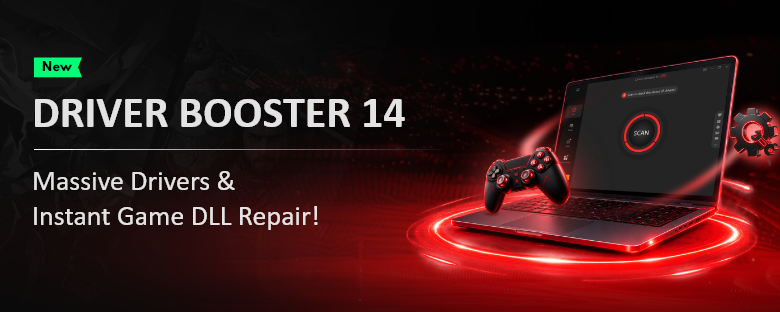
Driver Booster provides a perfect remedy for driver-related issues. Being equipped with a powerful engine, vast library of resources and special tools for gaming, the software is capable of helping me keep my drivers current, fixed and functioning normally without compromising system performance and stability.
Features That Won Me Over
A Database That Covers Almost Everything
The newest version carries over 23 million drivers, matching everything from fresh components to oddball peripherals and legacy gear. Every driver comes straight from official manufacturers or trusted Microsoft channels, passing WHQL certification and IObit’s own screening. That two-layer verification is the main reason I finally stopped holding my breath after each update.
Multi-Version Scanning for Real Flexibility
Here is the part that genuinely changed how I work. Older updaters only shoved the newest driver at me, whether I wanted it or not. This version scans multiple driver versions using smart logic to identify both the “latest” and the “most stable” builds. I can deploy rock-solid versions for daily work or push the newest ones for gaming weekends, and the revamped installation engine handles either without conflicts.
Automation That Runs Quietly
I schedule routine scans, let it check at Windows startup, and allow background updates during idle time. It runs silently and never interrupts my mid-project, which matters more than I expected on busy days.
Built-In Repair Tools
The utility fixes the everyday glitches I used to Google endlessly — no sound, wrong screen resolution, network drops, printer troubles, and unrecognized USB devices. The new “Fix Missing Game DLLs” feature scans over 60 game components and 680 DLL files with real-time detection, which killed most of my launch crashes and stutters.
Safety Nets Before Every Change
Before installing anything, it automatically backs up my current drivers and creates a restore point. If something misbehaves, a single click rolls me back. Offline updates and offline driver installation are available too, handy when a fresh PC has no internet yet.
Gaming Beyond the Basics
NVIDIA GeForce and AMD Radeon offer live drivers for the games, and the Game Boost helps in resource management and improving frames per second. In addition to that, it now also provides support for the SOCKS5 proxy settings, which turned out to be really helpful in limited networking scenarios.
How I Used Diver Booster Safely?
Step 1: It all starts with the download of the program from the official website of the IObit. Once downloaded, you should immediately install the software. When installation is done, launch the application on your Windows operating system.
Step 2: Press the prominent scan button located on the home page. The tool inspects every device and flags anything outdated, missing, or broken.
Step 3: Review what it finds. Expand a device to see version details, and choose between the latest build or the most stable official release.
Step 4: Hit Update All, or update items one by one if you prefer control. The app backs up your old drivers and creates a restore point first.
Step 5: Let the revamped installation engine finish. Typically, most installations can be completed in less than five minutes and you can continue your work while they are processed.
Step 6: Open the Tools tab to swiftly address any issues in gaming audio, network connection, display issues, or development required concerning game DLLs.
Step 7: Enable automatic scanning through your settings to ensure that all your future updates are performed automatically at a time that works for you.
Who Should Use This Product
Anyone on Windows 11, 10, 8.1, 8, or 7 who wants stable performance without manual driver hunting — especially gamers, casual users, and people managing older PCs.
My Final Thought
Choosing a driver tool comes down to trust. A good one proves its reliability through verified sources, backup options, and the freedom to pick your own versions. That is why I keep this driver updater on every PC I own. It ended my freeze-ups, restored my audio, and never once left me panicking after an update. Pick a tool that protects you first — and you will not get burned.